If you’ve ever launched a PSP game on PPSSPP Gold and felt like something was just off – stuttering gameplay, washed-out graphics or audio that sounds like it’s coming through a broken radio – you’re not alone. The emulator is powerful, but it’s only as good as the settings behind it.
The good news? With the right configuration, PPSSPP Gold can make your favorite PSP titles look and feel better than they ever did on the original hardware. This guide best performance will walk you through every setting that matters – graphics, audio, controls and more – so you can stop guessing and start gaming.
What Is PPSSPP Gold and Why Does It Need Proper Settings?
PPSSPP Gold is the premium version of the world’s most popular PSP emulator. Compared to the free version, it delivers a cleaner and more optimized experience – but here’s the thing most people miss: the default settings are generic. They’re designed to work on most devices, not to perform best on yours.
Think of it like buying a sports car and never adjusting the seat. It still drives, but you’re not getting the most out of it.
The Gold version gives you more room to customize. Getting those settings right is the difference between a laggy, frustrating experience and gameplay that feels smooth, sharp and immersive.
Before You Dive In – Prepare Your Device First
Recommended Specs for Android, iOS and Windows
You don’t need a flagship device to run PPSSPP Gold well, but knowing your hardware helps you set realistic expectations.
Android: A quad-core processor with at least 2GB of RAM is a solid baseline. Devices with Snapdragon 660 or better will handle most games with ease.
iOS: Any iPhone 7 or newer can run PPSSPP Gold smoothly. The A-series chips are more than capable.
Windows: A mid-range CPU paired with a dedicated GPU will give you the best results. Even integrated graphics work fine for most PSP titles if you keep settings moderate.
Installation Tips to Avoid Common Mistakes
Download PPSSPP Gold Best Performance only from the official source or a verified app store. On Android, you may need to enable “Install from Unknown Sources” in your settings before the APK will install – this is normal and safe as long as your source is legitimate.
After installing, open the app, grant the necessary permissions and load your game files. Don’t tweak everything at once. Start with the default settings, play for a few minutes and then adjust based on what you notice.
Graphics Settings – Where Most of the Magic Happens
Getting the graphics right has the biggest impact on your overall experience so let’s go through each option carefully.
OpenGL vs. Vulkan – Which Rendering Mode Should You Choose?
This is one of the most common questions and the honest answer is: it depends on your device.
OpenGL is the safe and reliable choice. It’s been around for years, works on virtually every device and handles the vast majority of PSP games without issues. If you’re unsure, start here.
Vulkan is newer and can deliver noticeably better performance on supported hardware. It handles graphically complex scenes more efficiently and takes some of the load off your CPU. The downside is that not all devices support it and some games can behave unexpectedly with Vulkan enabled.
Practical tip: Start with OpenGL. If everything runs smoothly, try switching to Vulkan and see if you notice any improvement in performance or visual quality. If you encounter glitches or crashes, switch back.
Resolution – Sharper Doesn’t Always Mean Better
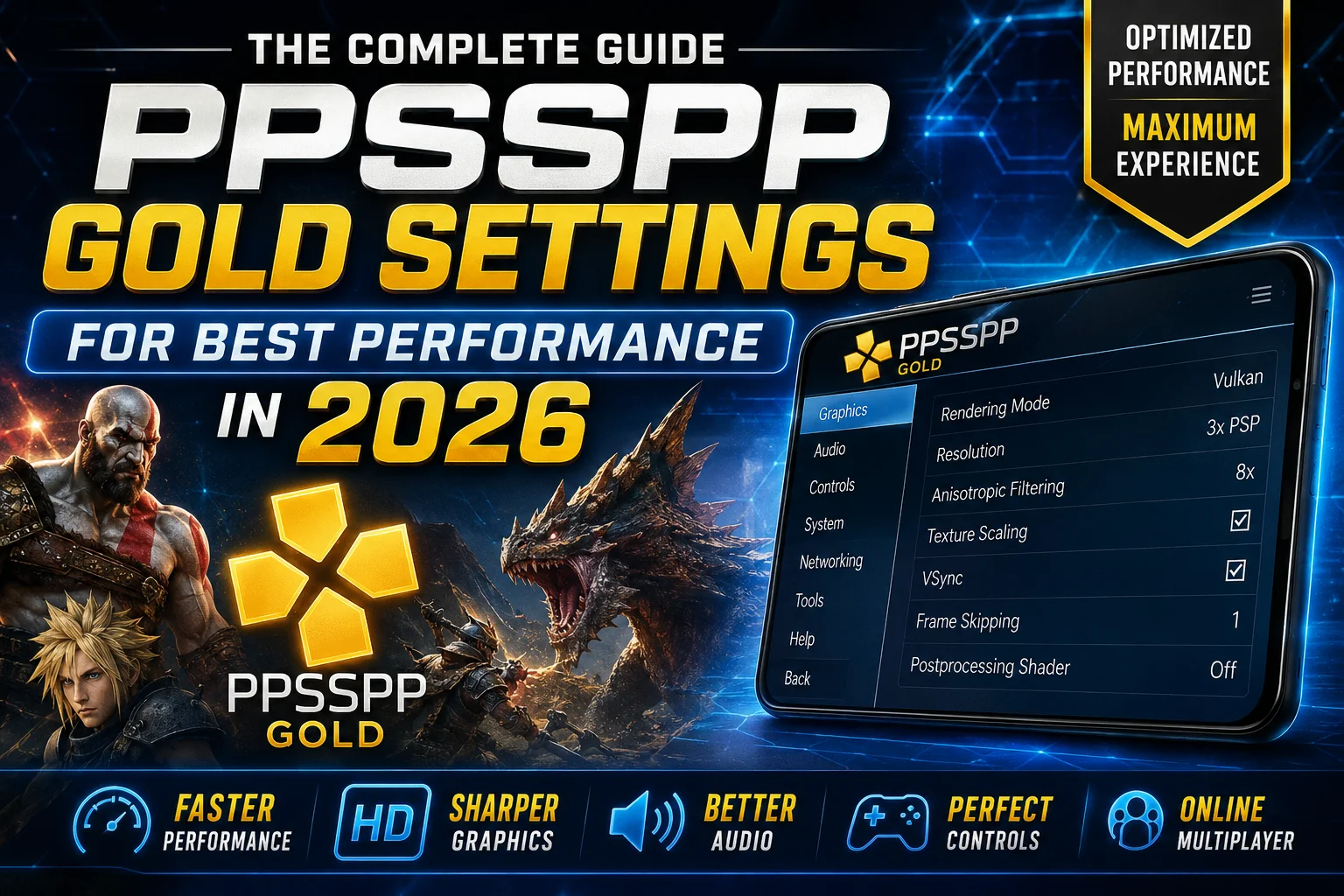
One of the biggest perks of emulation is the ability to play PSP games at resolutions higher than the original hardware ever supported. The original PSP had a 480×272 display. On a modern smartphone that looks pretty rough.
Increasing the rendering resolution in PPSSPP Gold makes games look significantly sharper and more detailed – but it also demands more from your processor and GPU.
The right approach is to start at native (1x) resolution and then gradually bump it up (2x, 3x, 4x) while testing performance. The moment you notice frame drops or stuttering, dial it back one step. That’s your sweet spot.
Anisotropic Filtering and Texture Scaling – Worth Enabling?
Anisotropic filtering improves how textures look when viewed at an angle – think racing tracks, sports courts or long corridors. Without it those surfaces can look blurry and flat. With it they stay crisp even as the camera shifts. It has a relatively small performance cost so most modern devices can handle 4x or even 8x without issues.
Texture scaling smooths out the pixelated edges of in-game textures which is especially noticeable in older PSP titles. It can make games look more polished but it’s resource-intensive. Enable it carefully and test game by game – some titles benefit a lot while others barely notice the difference.
Audio Settings – Often Overlooked, Always Noticeable
Bad audio can ruin an otherwise great gaming session faster than poor graphics. Here’s how to get it right.
Matching Sound Latency to Your Device
Audio latency refers to the delay between a game action and the sound it produces. If a character’s sword swing sounds half a second after the animation, something is off.
The default settings work well for most devices but if you notice audio lag, go into the audio settings and adjust the latency value. Reduce it gradually until sound and action feel in sync. Don’t go too low – extremely low latency values can cause crackling or audio dropouts on some hardware.
Dealing with Audio Problems in Heavy Games
Some PSP titles push the emulator hard and when the processor gets overloaded, audio usually suffers first – you might hear crackling, skipping or silence. If this happens:
Lower the audio quality settings slightly. It’s not ideal but stability matters more than perfection.
Reduce the emulation speed a notch. Even a small reduction can relieve enough processor load to restore clean audio.
Use headphones whenever you can. They block out background noise and make even moderate-quality audio feel more immersive.
Control Customization – Make Every Game Feel Natural
The right control setup can transform how a game feels. PPSSPP Gold gives you a lot of flexibility here and it’s worth spending a few minutes dialing things in.
Setting Up On-Screen Touch Controls
PPSSPP Gold’s touch controls are fully customizable. You can resize buttons, move them to any position on the screen and adjust their transparency so they don’t block the action.
For action-heavy games bring the buttons closer together for faster access. For games where you mostly need directional input like platformers and RPGs you can spread things out more comfortably. Adjust the transparency so the controls are visible without obscuring what’s happening in the game.
Using an External Gamepad
If you’re gaming at home, a Bluetooth gamepad is absolutely worth it. PPSSPP Gold supports a wide range of controllers — most modern Android-compatible gamepads work out of the box.
Once connected you can map every button to your preference. The setup process is straightforward: connect the gamepad via Bluetooth, open PPSSPP Gold, go to Settings > Controls and configure your button layout.
Pro tip: Create separate control profiles for different game types. A fighting game benefits from having all the attack buttons clustered together. A racing game needs an easily accessible throttle. Save each profile and switch between them as needed – it only takes a second.
Advanced Performance Tweaks for Demanding Games
Once your basic settings are configured, these advanced options can squeeze out extra performance when you need it.
Frame Skipping – Use It Wisely
Frame skipping tells the emulator to skip rendering some frames in order to keep the game moving at normal speed. It’s useful when a game is running sluggishly but it can also make animations look choppy if overused.
Think of it as a last resort rather than a first option. Try other settings adjustments first and only enable frame skipping if nothing else resolves the slowdown. When you do use it keep the value low – 1 or 2 skipped frames maximum – for the smoothest possible result.
Emulation Speed – Finding the Right Pace
Some games run faster or slower than intended depending on your device. PPSSPP Gold lets you adjust emulation speed to compensate. If a game feels unnaturally fast or slow compared to the original PSP experience, and best performance nudge this setting until the pace feels right.
Balancing Speed and Visual Quality
Here’s the core tension in emulator optimization: better visuals require more processing power which can slow the game down. Every device has a limit and finding yours takes a bit of experimentation.
Start with moderate settings across the board. Then improve one thing at a time – raise the resolution, check performance, adjust and repeat. This methodical approach gets you the best results without the frustration of changing everything at once.
Game-Specific Settings for Popular PSP Titles
Some games need a little extra attention. Here’s how to handle a few of the most demanding ones.
God of War: Chains of Olympus and Ghost of Sparta
These are among the most graphically intense games in the PSP library. For the best experience:
Lower the rendering resolution slightly if you notice frame drops during combat sequences. The action in these games moves fast and smooth frames matter more than ultra-sharp resolution.
If you see visual artifacts or strange graphical glitches, try switching between OpenGL and Vulkan – sometimes one handles a specific scene much better than the other.
Monster Hunter Freedom Unite and Monster Hunter Portable 3rd
Monster Hunter is notorious for its dense environments and detailed monster models. Common issues include slow load times and occasional stuttering in large areas.
Try adjusting the I/O timing method in the system settings – this can reduce load times noticeably. Experimenting with CPU clock speed settings can also help during intense multi-monster hunts.
Create a dedicated settings profile for Monster Hunter so you don’t have to re-tune every time you switch games.
Multiplayer Settings – Gaming with Friends Online
One of PPSSPP Gold’s lesser-known features is its multiplayer support which lets you play PSP games with friends over the internet.
How to Set Up Online Multiplayer
Go to Settings > Networking and enable “Networking/WLAN.” Make sure you and your friends are connected to the same server — PPSSPP uses a server-based system to simulate local wireless connections.
If you’re playing over the internet rather than a local network, you may need to set up port forwarding on your router. The specific steps vary by router model but PPSSPP’s official documentation and community forums have guides for the most common setups.
Keeping Multiplayer Sessions Smooth
Latency is the biggest challenge in online multiplayer. To minimize it:
Choose a server geographically close to all players when possible. The further data has to travel, the longer it takes.
Close any apps running in the background on your device – they compete for resources and can degrade both performance and connection stability.
If you’re on Wi-Fi, stay as close to your router as possible. A wired connection is even better if your device supports it.
Troubleshooting – Fixing the Most Common PPSSPP Gold Problems
Black Screen After Loading a Game
This is usually caused by a corrupted or incomplete game file or an incompatible settings configuration.
First verify that your game file is complete and from a reliable source. Then try resetting PPSSPP Gold’s settings to default – a single incorrect setting can prevent some games from loading. If the problem persists, check for an available update to the emulator itself as updates frequently fix compatibility issues.
Random Crashes Mid-Game
Crashes during gameplay usually point to your device being pushed beyond its limits. Lower your graphical settings – particularly rendering resolution and texture scaling – and see if stability improves. If your device feels warm to the touch when crashes occur, give it a rest. Heat-triggered throttling is a real issue on mobile devices.
Poor Compatibility with a Specific Game
Not every PSP game runs perfectly on every device. If a specific title is giving you trouble, consult the PPSSPP compatibility list online – it’s a community-maintained database that lists known issues and recommended settings for hundreds of games. The PPSSPP forums are also an excellent resource for game-specific configuration files shared by other users.
How to Update PPSSPP Gold Without Losing Your Settings
Keeping PPSSPP Gold updated is important – updates bring performance improvements, bug fixes and expanded game compatibility. Here’s how to update safely:
Step 1 – Back up your settings. Before updating, export your current settings from within the app. Save the file somewhere safe like your cloud storage or a dedicated folder.
Step 2 – Install the update. If you got PPSSPP Gold from an app store, the update process is straightforward. If you installed it manually via APK, download the latest version from the official site and install it without uninstalling the previous version first. Uninstalling first can wipe your saved game data.
Step 3 – Restore if needed. After updating, check that your settings and saves are intact. If anything is missing, use the backup file to restore from within the settings menu.
Where to Get Help – The Best PPSSPP Communities
The PPSSPP community is genuinely one of the most helpful gaming communities online. If you’re stuck on a specific game or configuration problem, these resources are worth bookmarking:
The Official PPSSPP Forums – the most authoritative source for troubleshooting and game-specific configurations. Developers are active there.
Reddit (r/ppsspp and r/EmulationOnAndroid) – great for device-specific tips and quick answers from experienced users.
YouTube – visual guides are especially helpful for settings configuration. Search for your specific device model plus PPSSPP Gold for the most relevant results.
Discord – several active PPSSPP and emulation servers offer real-time help from knowledgeable community members.
Final Thoughts
PPSSPP Gold is an exceptional emulator but the default settings only scratch the surface of what it can do. A few smart adjustments to your graphics, audio and control configuration can completely transform your gaming experience – turning something that felt mediocre into something genuinely great.
The key is patience and experimentation. Every device is different, every game has its own quirks and what works perfectly for one person might need tweaking for another. Start with the recommendations in this guide, test as you go and don’t be afraid to make changes.
Your favorite PSP games deserve to be played at their best – and with PPSSPP Gold configured properly, that’s exactly what you’ll get.